 Drefly
Burn Captions Into Video Free, With a Live Caption Editor
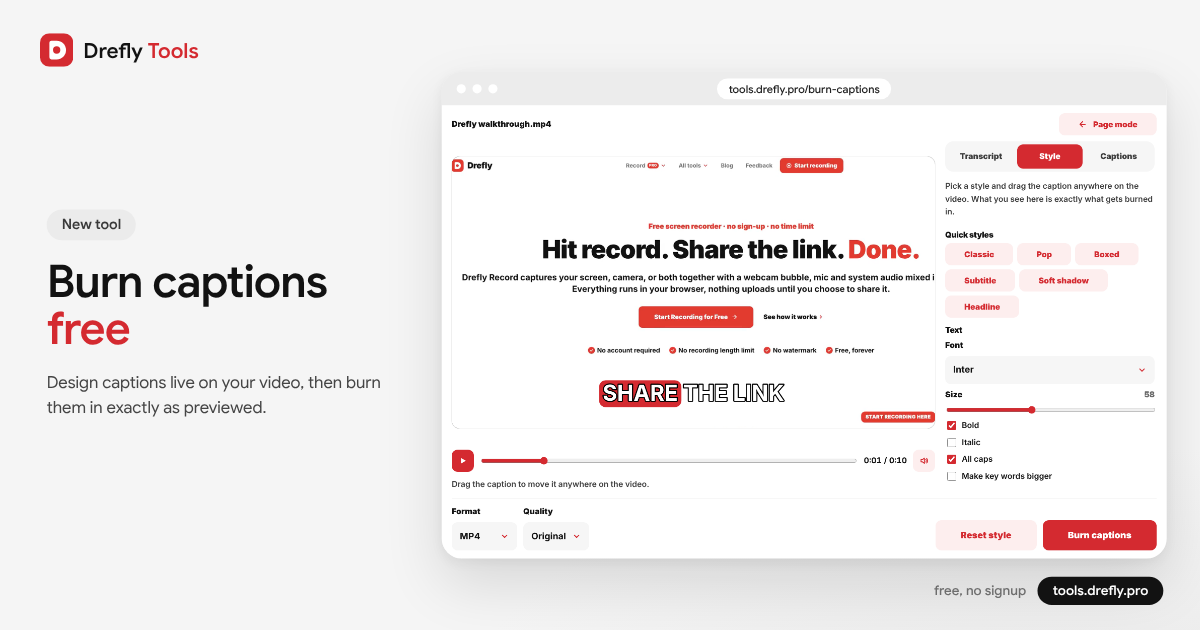
Captions make a video work without sound, and burned-in captions travel with the video wherever it goes: social feeds, chat apps, slides and email. Burn Captions is a new free Drefly tool that takes you from a plain video to a captioned one in a few minutes, right in your browser.
What Burn Captions does
- Transcribes the speech in your video on your own device, in close to a hundred languages.
- Lets you fix the transcript, the summary and the chapters before you style anything.
- Opens a full-page editor where captions are drawn live on your video as it plays.
- Burns the captions into the video and gives you an MP4, WEBM or MOV file to download.
It's free, with no signup and no watermark, and your video is never uploaded.
Transcribe on your device
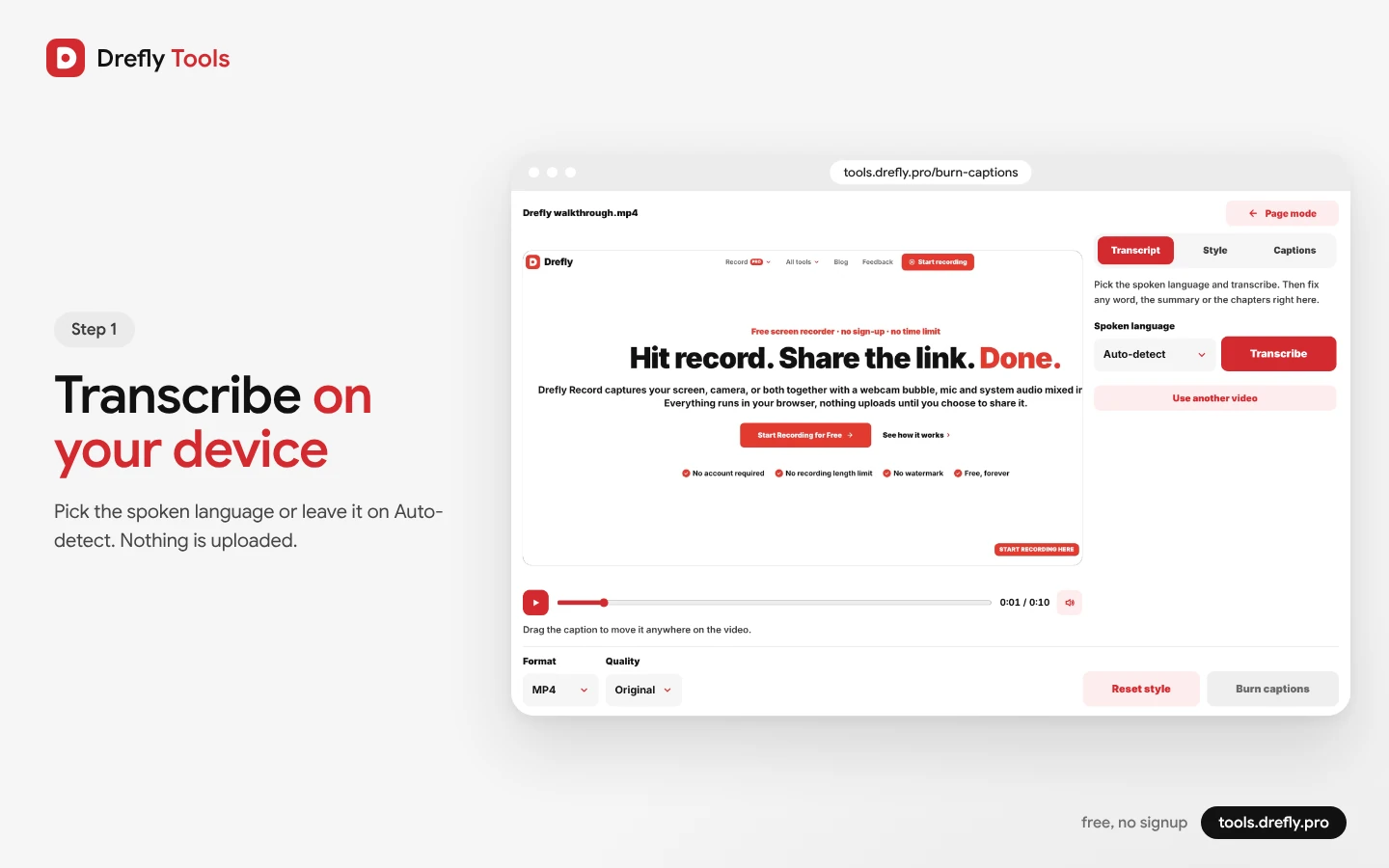
Add a video and the editor opens in full page right away, with the video on the left and three tabs on the right. Pick the spoken language, or leave it on Auto-detect, and press Transcribe. The first run downloads a speech model once; after that it works from your browser's cache.
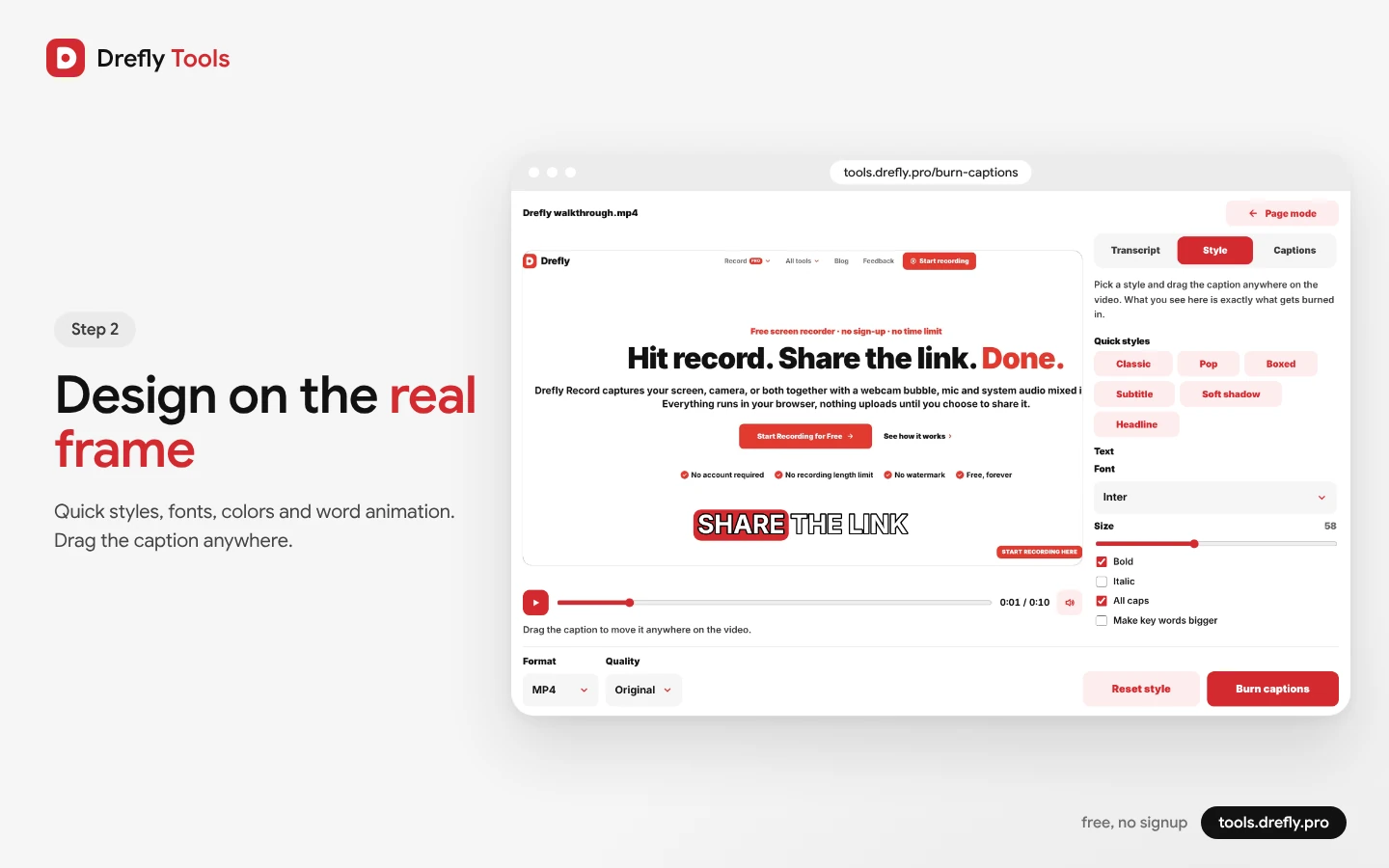
Design captions on the real frame
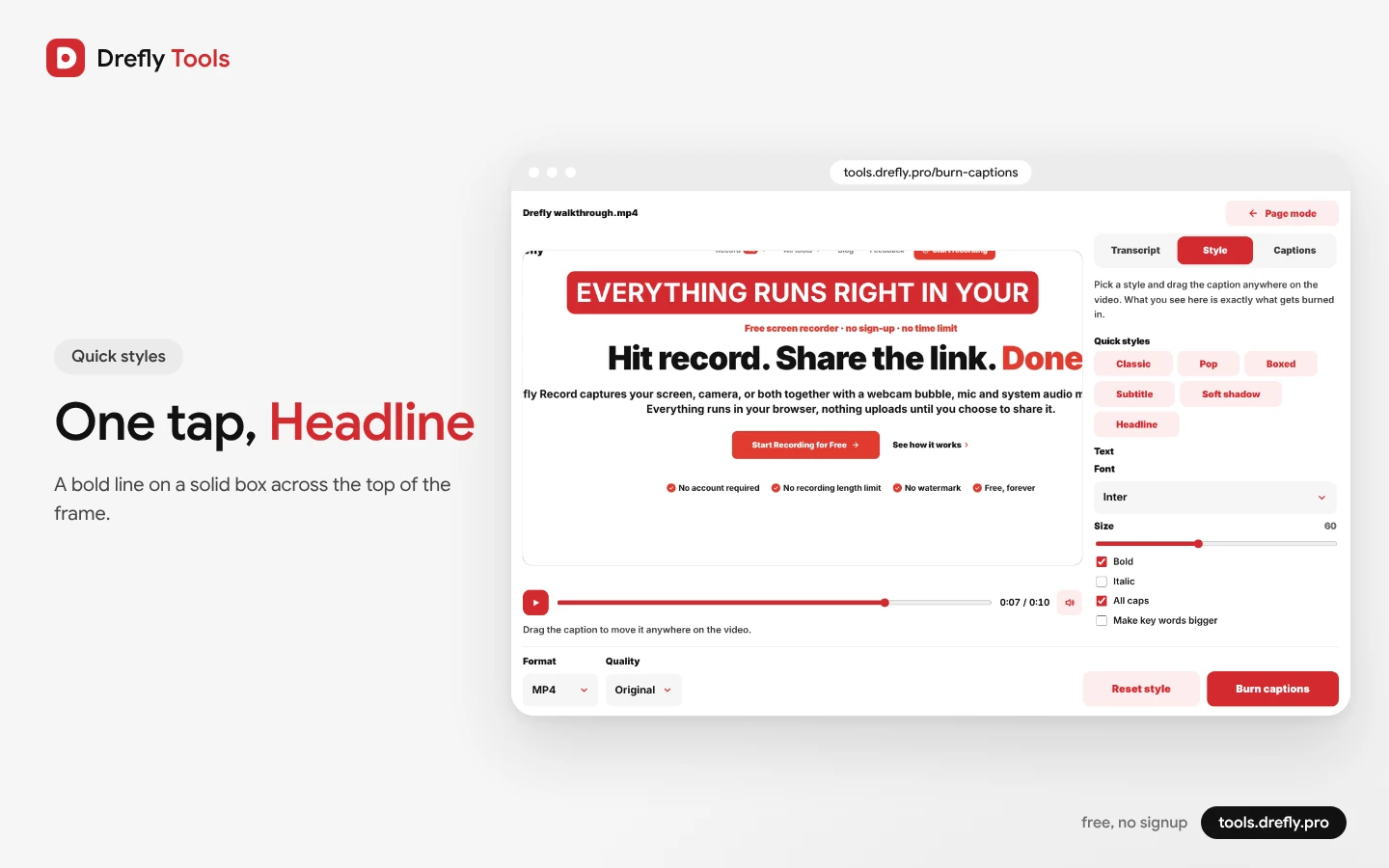
The Style tab is where captions take shape. Start from a quick style, Classic, Pop, Boxed, Subtitle, Soft shadow or Headline, then change anything you like:
- Text: font, size, bold, italic, all caps, and bigger key words.
- Colors: the text color and the highlight color for the current word.
- Animation: words appear one by one, or all at once with the current word highlighted as colored text or a colored box.
- Position: top, middle, bottom, or anywhere. Just drag the caption on the video.
- Outline, shadow and box: outline width and color, a soft shadow, and a background box with its own color, opacity, padding and rounded corners.
- Layout: words per line, lines on screen, maximum width and line spacing.
Fix any word
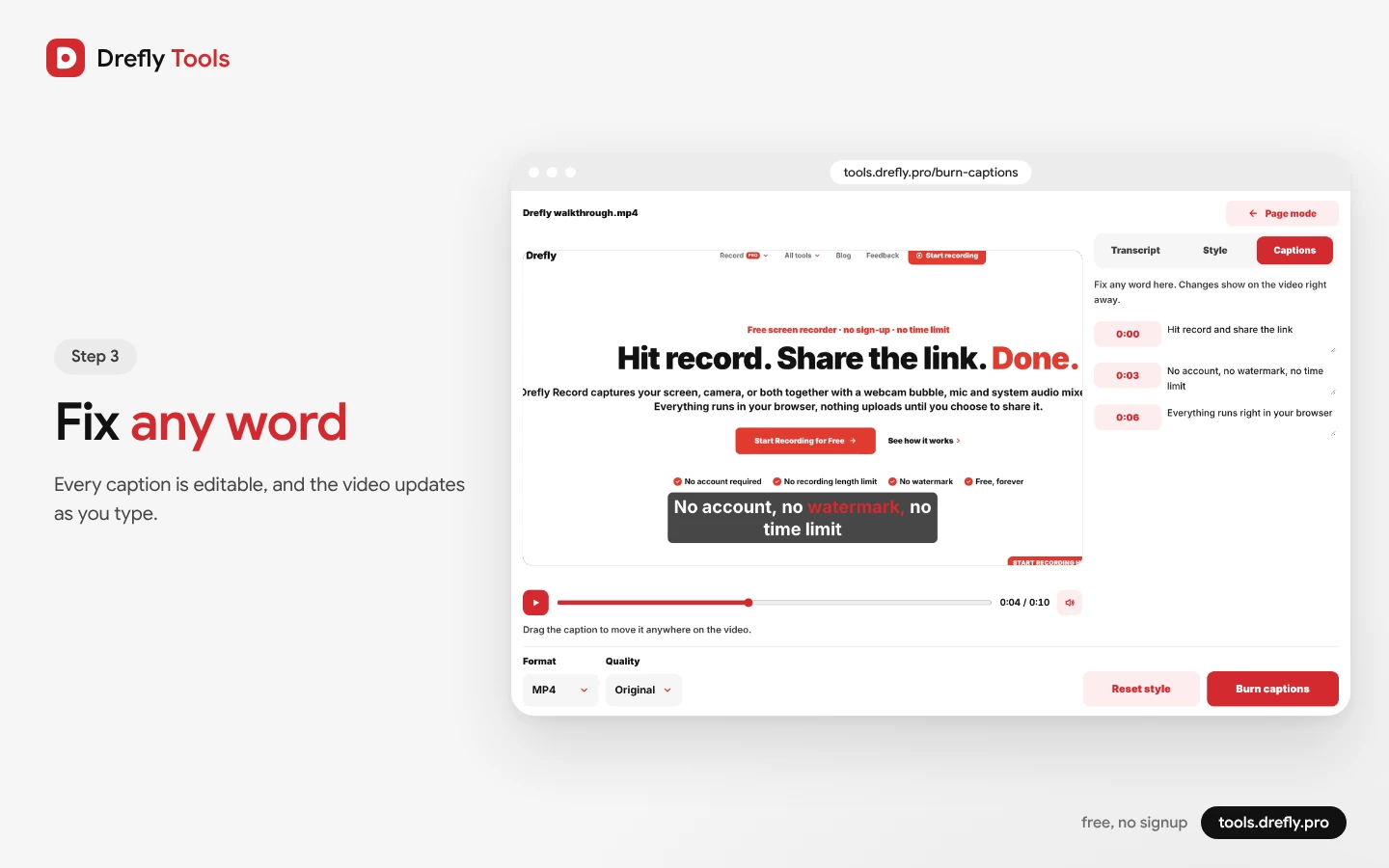
Speech models get names and jargon wrong now and then. Fix them in the AI panel on the Transcript tab, or in the Captions tab, which lists every caption with its start time. Click a time to jump there, edit the text, and the change shows on the video straight away.
Burn and download
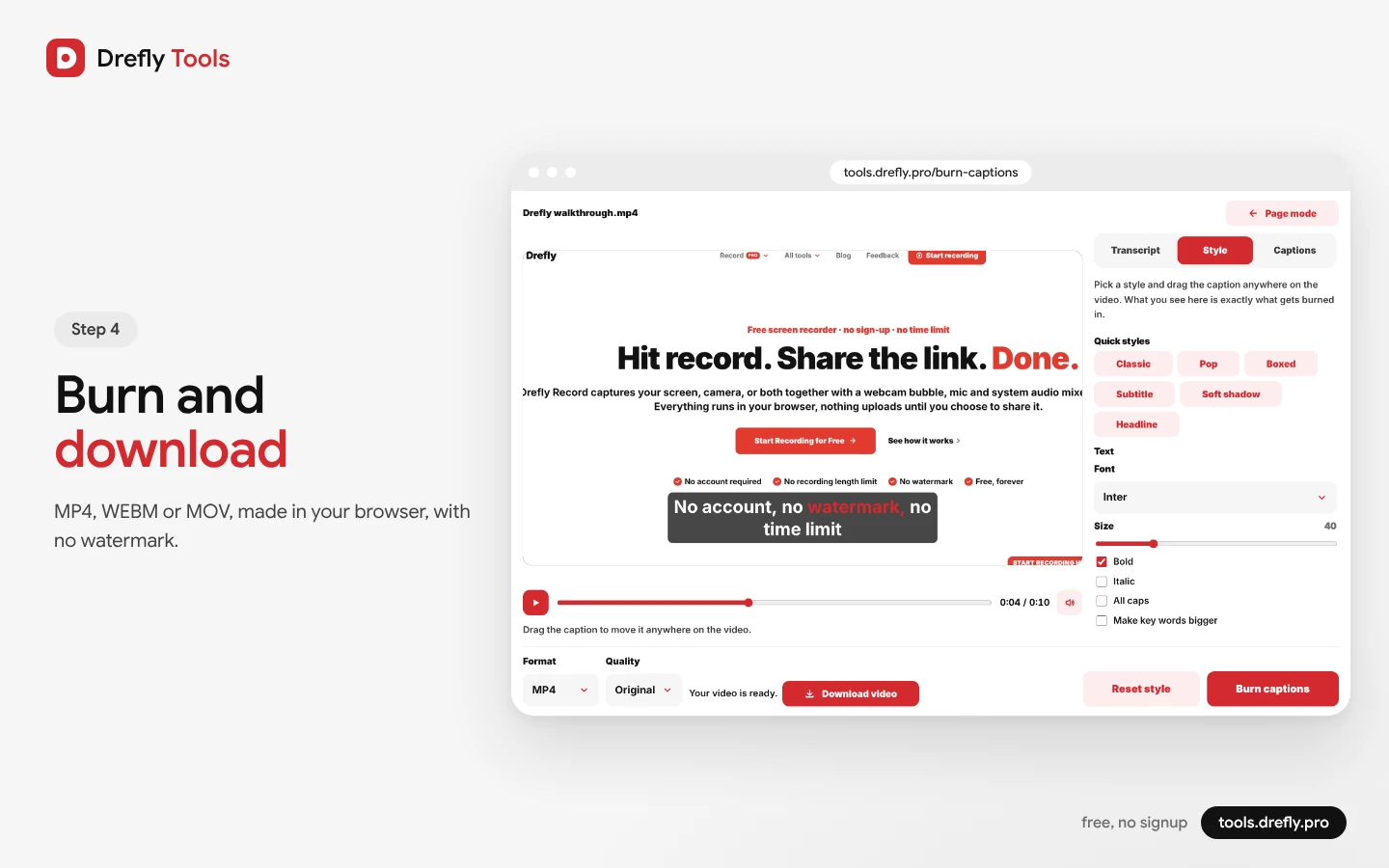
Choose MP4, WEBM or MOV and a quality, Original, 1080p, 720p or 480p, and press Burn captions. The video is processed in your browser, and a Download button appears when it's ready.
Why the output matches the preview
Many caption tools show a rough preview and render the final video a different way, so fonts, sizes and positions shift. Burn Captions draws the preview and the final video with the very same caption renderer, at your video's real resolution, and loads the same fonts for both. In our tests the burned frames matched the preview to within normal video compression.
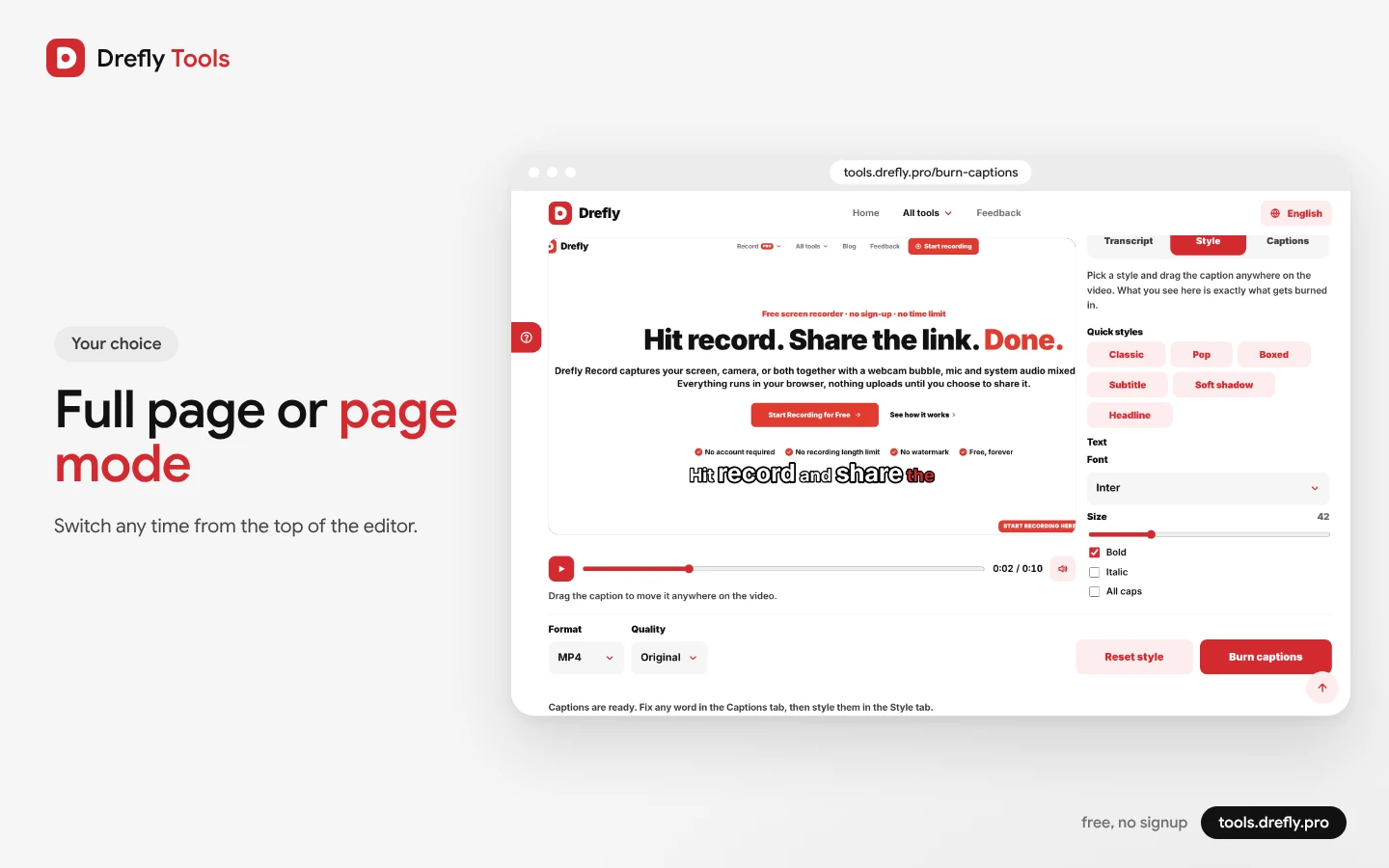
Prefer a normal page while you work? Switch to page mode from the top of the editor and back to full page whenever you like.
We'd love your feedback
Tell us which styles you'd like next through the Feedback link in the menu or at support@drefly.pro.
Caption your next video
Add a video, transcribe it, and design captions that look exactly right.
Open Burn Captions